🧩 Poster Maker
Print any picture as a big poster on ordinary pages — choose how many pages wide, then trim and tape them together.
Choose a picture or drop it here
JPG, PNG, WebP or GIF · stays on your device
1 · Picture
No picture yet.
2 · Poster size
The overlap strip repeats on neighbouring pages — it's where you glue or tape, and it hides small trimming errors.
3 · Print
How to put it together
- Print the PDF at Actual size / 100%.
- Lay the pages out using the labels — letters are rows (A at the top), numbers are columns (1 on the left).
- On each page, trim the white margin off the right and bottom edges along the crop marks.
- Lay each trimmed edge over the neighbouring page so the picture lines up across the overlap, then tape or glue from the back.
How big can I print?
| Pages across | On A4 (portrait) | On US Letter (portrait) | Photo width for ~100 ppi |
|---|---|---|---|
| 1 | 19 cm wide | 7.9 in wide | 788 px |
| 2 | 38 cm wide | 15.3 in wide | 1,535 px |
| 3 | 56 cm wide | 22.8 in wide | 2,283 px |
| 4 | 75 cm wide | 30.3 in wide | 3,030 px |
| 5 | 93 cm wide | 37.8 in wide | 3,778 px |
| 6 | 111 cm wide | 45.3 in wide | 4,526 px |
The height follows from your picture's shape. For a sharp result up close, aim for about 150 pixels per inch; for posters seen from across a room, 70–100 is fine. The tool shows the figure for your picture and warns you when it gets low.
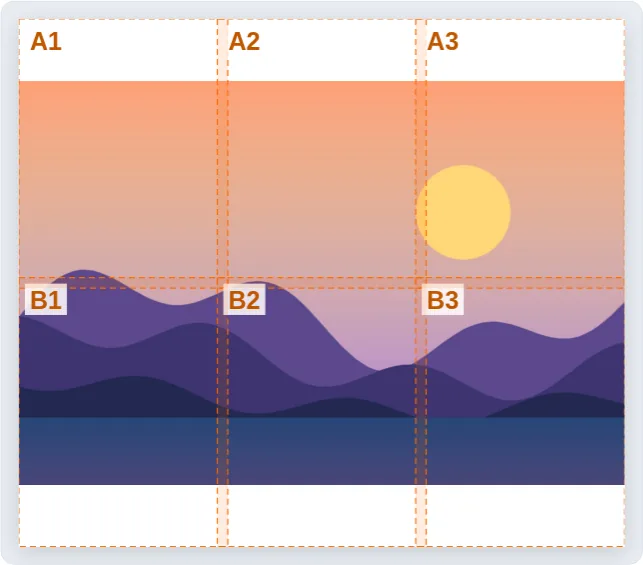
Putting the poster together
Print at Actual size, trim the white margin from the right and bottom of each page along the crop marks, then lay each trimmed edge over the next page so the picture lines up across the overlap. Tape or glue from the back, row by row. A spray adhesive and a sheet of foam board make a flat, long-lasting poster.
About the Poster Maker
🧩 Big prints at home
Split one picture across as many pages as you like — a 4-page-wide poster on A4 comes out about 75 cm wide, all from an ordinary home printer.
📏 Exact size or page count
Pick how many pages wide, or type the exact width in centimetres or inches and the tool works out the pages for you.
✂️ Crop marks and labels
Every page has crop marks in the margin and a grid label like B3, plus an optional guide page with a map of the whole poster.
🔍 Sharpness check
The tool shows how many pixels per inch your photo will have at the chosen size and warns you before it gets blurry.
🔒 Private
Your picture never leaves your device — the PDF is assembled in your browser.
🎨 Ideas
Wall art, birthday banners, classroom displays, maps, sewing and woodworking patterns, life-size cut-outs and party photo backdrops.
Frequently Asked Questions
How do I print a large picture on several A4 pages?
Choose your picture, set how many pages wide the poster should be and download the PDF. Print it at Actual size, trim the right and bottom margins of each page, and tape the pages together using the labels and overlap strips.
How big can I make the poster before it looks blurry?
Look at the "pixels per inch" figure. Around 150 or more looks sharp up close; 100 is fine for something seen from a metre or two away; below about 70 it will look soft. A 12-megapixel phone photo prints nicely about 60 cm wide.
What overlap should I use?
10 mm is a good default: enough to glue or tape and to hide small trimming errors. Use 0 if you want to butt the pages edge to edge.
Why trim the margins?
Home printers can't print right to the edge of the paper, so each page has a white border. Trimming the right and bottom borders lets each page lie over its neighbour so the picture runs on without a gap.
Is my photo uploaded anywhere?
No. The picture is read and the PDF is made entirely in your browser, so it never leaves your device.
How do I print one picture on several sheets of paper?
Choose the picture here, set how many pages wide the poster should be and download the PDF. Each page holds one piece of the picture with crop marks and a label, plus a guide page showing where every piece goes.
Is this like the Rasterbator?
It does the same basic job — splitting a picture over many pages — but keeps the picture as a normal photo rather than halftone dots, runs entirely in your browser, and adds labels, overlap strips and an assembly guide.